Using Claude for Microsoft 365 with a Third-Party API Gateway
The Claude for Microsoft 365 plugin runs inside an Office WebView sandbox with strict browser security policies. If your LLM gateway does not return the correct CORS headers, the plugin cannot connect directly. This post explains how to use CLIProxyAPI as a local proxy to bridge the gap.
Why Direct Connection Fails
Office add-ins operate inside a sandboxed iframe at https://pivot.claude.ai. Three browser-level restrictions apply:
- CORS: All requests must include an
Access-Control-Allow-Originresponse header. - Mixed content: An HTTPS page cannot send requests to an HTTP endpoint.
- localhost restriction: The WebView may block connections to
127.0.0.1.
If your gateway does not handle CORS correctly, the Office plugin will refuse to connect. CLIProxyAPI sits between the plugin and the gateway, adding the necessary headers and terminating TLS locally.
Architecture
┌─────────────────┐     HTTPS       ┌─────────────────┐     HTTPS        ┌──────────────────┐
│  Office Plugin  │ ──────────────> │   CLIProxyAPI   │ ──────────────>  │    LLM Gateway   │
│ (Word/Excel/    │     IP:8317     │ (Local Proxy)   │    API Relay     │ (Remote Service) │
│  PowerPoint)    │                 │                 │                  │                  │
└─────────────────┘                 └─────────────────┘                  └──────────────────┘
                                    - Adds CORS headers
                                    - TLS termination
                                    - Model name mapping
Step 1: Install the Claude for Microsoft 365 Plugin
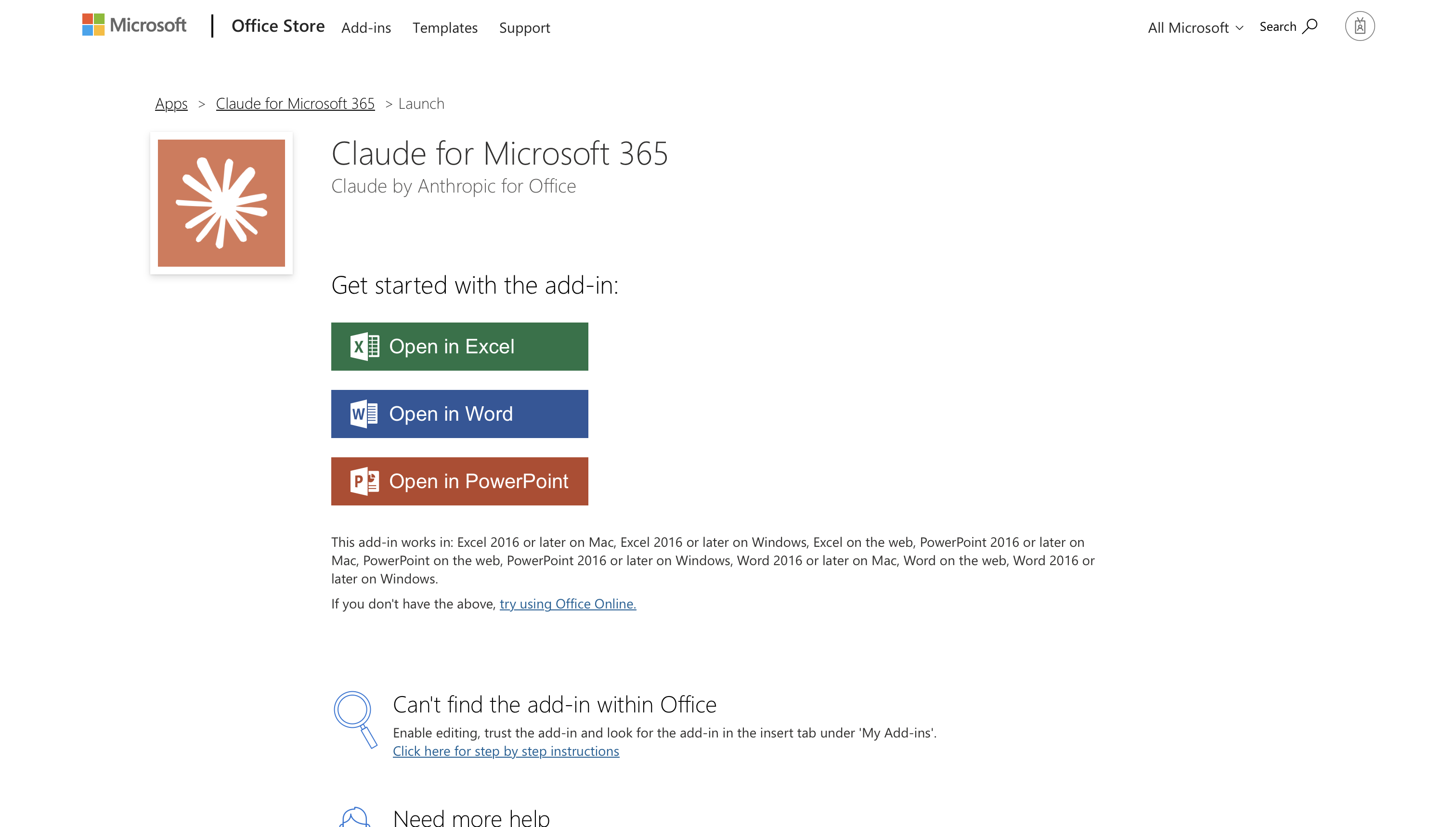
- Download and install the Office add-in
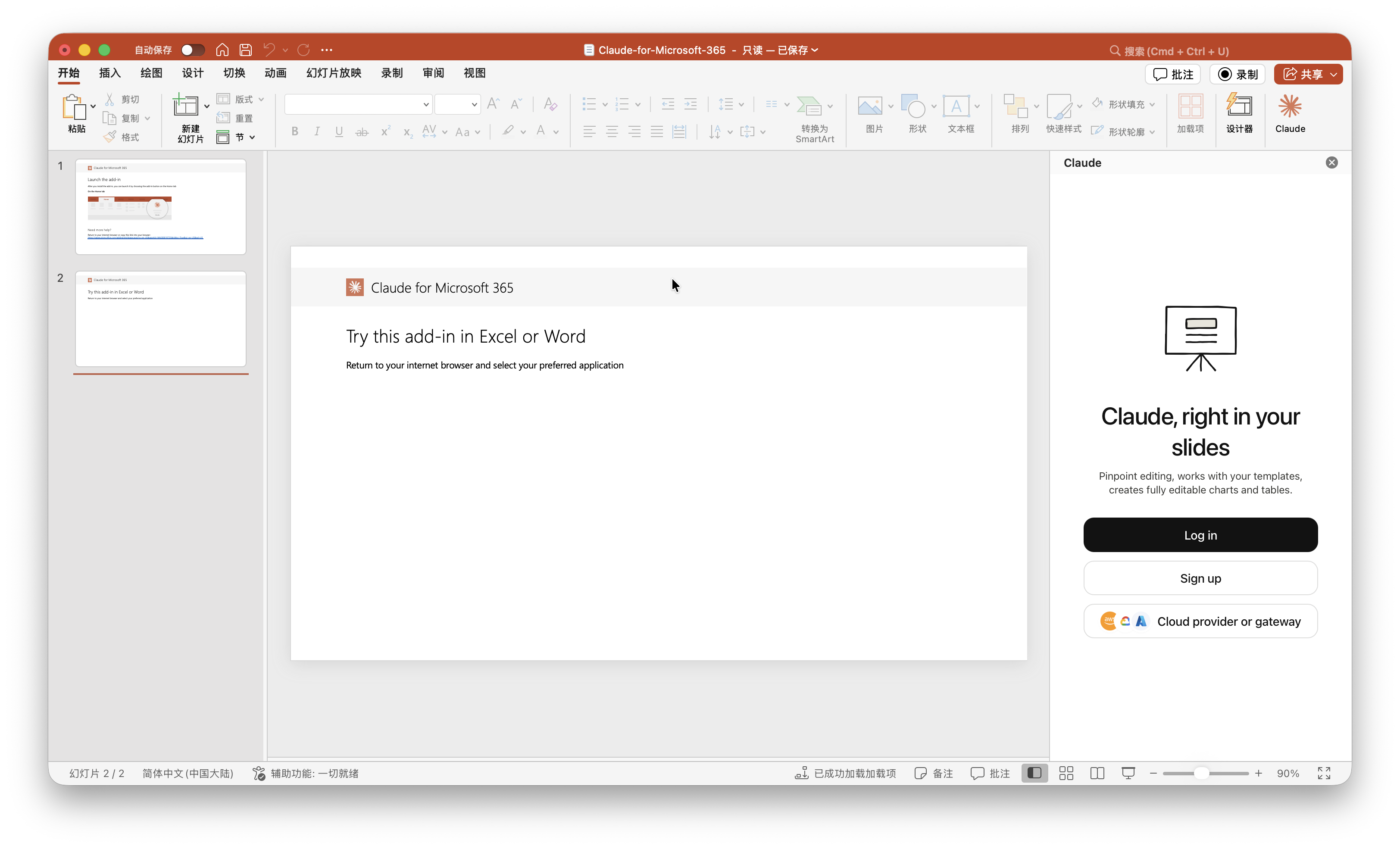
- Open Word, Excel, or PowerPoint and confirm the plugin appears in the ribbon
Step 2: Install CLIProxyAPI
macOS
brew install cliproxyapiLinux
curl -fsSL https://raw.githubusercontent.com/router-for-me/cliproxyapi-installer/refs/heads/master/cliproxyapi-installer | bashWindows
Download from the GitHub Releases page:
https://github.com/router-for-me/CLIProxyAPI/releasesStep 3: Generate a TLS Certificate
Office plugins require HTTPS. Generate a self-signed certificate with your machine’s IP address:
# Get your local IP
ipconfig getifaddr en0

# Generate certificate (replace 13.29.90.133 with your actual IP)
openssl req -x509 -newkey rsa:2048 \
  -keyout ~/.cli-proxy-api/key.pem \
  -out ~/.cli-proxy-api/cert.pem \
  -days 365 -nodes \
  -subj "/CN=13.29.90.133" \
  -addext "subjectAltName=IP:13.29.90.133,IP:127.0.0.1,DNS:localhost"
Trust the certificate on macOS:
sudo security add-trusted-cert -d -r trustRoot \
  -k /Library/Keychains/System.keychain \
  ~/.cli-proxy-api/cert.pem
Step 4: Create the Configuration File
Create ~/.cli-proxy-api/config.yaml:
# Bind to all interfaces (Office WebView may block localhost)
host: ""
# Service port
port: 8317
# TLS configuration (Office plugins require HTTPS)
tls:
  enable: true
  cert: "/Users/<your-username>/.cli-proxy-api/cert.pem"
  key: "/Users/<your-username>/.cli-proxy-api/key.pem"
# Authentication directory
auth-dir: "~/.cli-proxy-api"
# API Keys - the Office plugin uses this key to authenticate
api-keys:
  - "your-office-addin-key"
# Debug logging
debug: true
# Claude API configuration (your LLM gateway)
claude-api-key:
  - api-key: "your-gateway-api-key"
    base-url: "https://your-gateway-domain/anthropic"  # Do NOT include /v1
    headers:
      x-api-key: "your-gateway-api-key"
    models:
      - name: "your-gateway-model-name"       # Actual model name on the gateway
        alias: "claude-sonnet-4-6"             # Model name the Office plugin requests
    cloak:
      mode: "auto"
# Management API (optional)
remote-management:
  allow-remote: false
  secret-key: ""
disable-control-panel: false| Field | Description |
|---|---|
host | Empty string binds to all interfaces; Office WebView may block localhost |
port | Service port, customizable |
tls.enable | Must be true; Office plugins require HTTPS |
api-keys | Authentication key used by the Office plugin |
claude-api-key.api-key | Your LLM gateway API key |
claude-api-key.base-url | Gateway URL without /v1 (the SDK appends it automatically) |
claude-api-key.models[].name | The actual model name supported by the gateway |
claude-api-key.models[].alias | The model name the Office plugin sends (mapped to name) |
Step 5: Start the Service
brew services start cliproxyapiVerify the service is running:
# Check service status
brew services list | grep cliproxyapi

# Test the HTTPS endpoint (replace with your IP)
curl -k https://13.29.90.133:8317/v1/models \
  -H "Authorization: Bearer your-office-addin-key"

# Test the messages endpoint
curl -k -X POST https://13.29.90.133:8317/v1/messages \
  -H "x-api-key: your-office-addin-key" \
  -H "Content-Type: application/json" \
  -H "anthropic-version: 2023-06-01" \
  -d '{"model":"claude-sonnet-4-6","max_tokens":10,"messages":[{"role":"user","content":"hi"}]}'
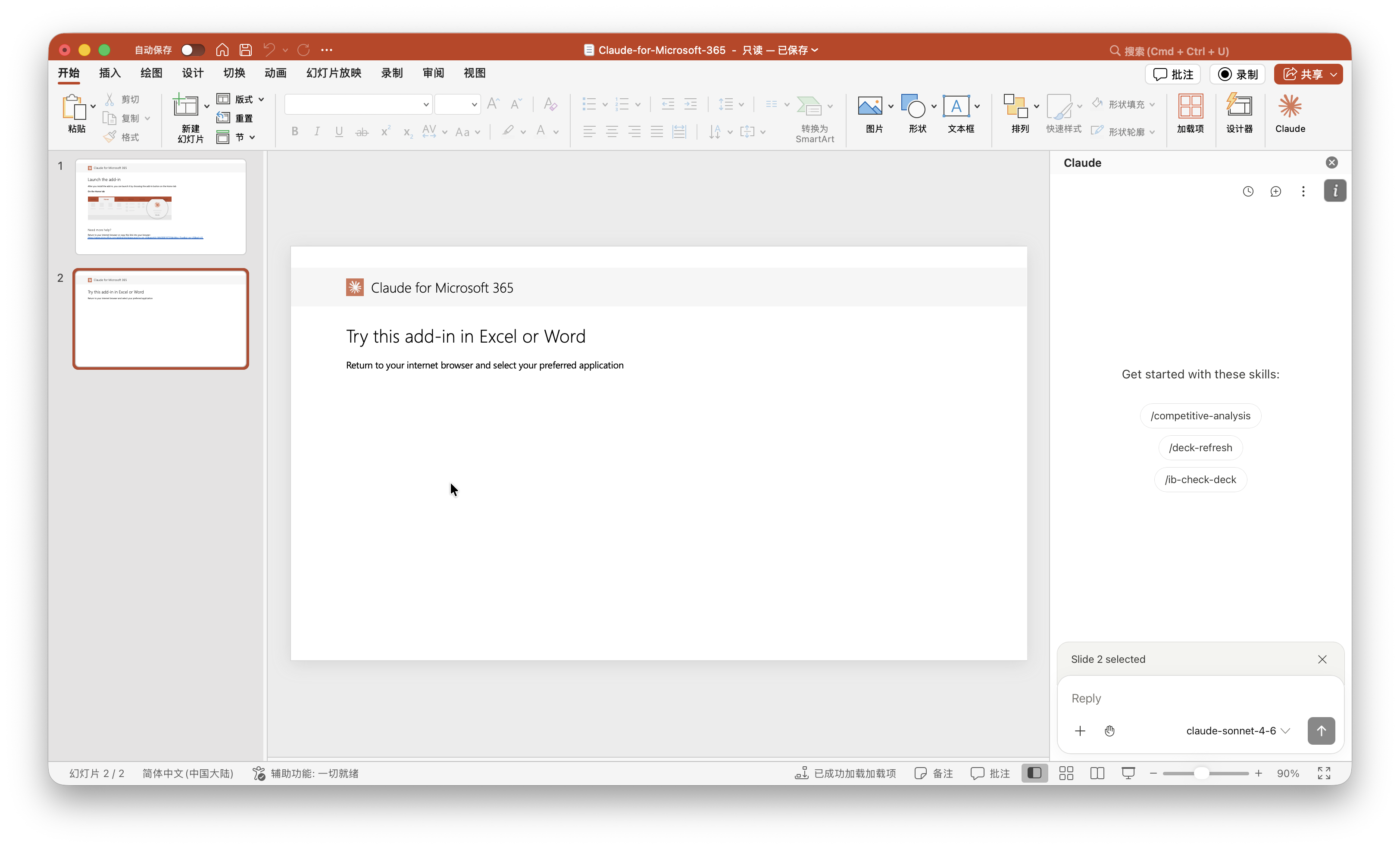
Step 6: Configure the Plugin in Word/Excel/PowerPoint
- Open Word, Excel, or PowerPoint and launch the Claude plugin
- On the login screen, select Gateway
- Fill in the connection details:
| Field | Value |
|---|---|
| Gateway URL | https://<your-IP>:8317 (e.g., https://13.29.90.133:8317) |
| API Token | The api-keys value you set in config.yaml |
- Click Test Connection
- Once connected, the plugin is ready to use
Frequently Asked Questions
Why can’t I connect to the gateway directly?
The Office plugin runs inside a sandboxed iframe at https://pivot.claude.ai. If the gateway does not return the correct Access-Control-Allow-Origin header on all responses (including error responses), the WebView blocks the request.
Why can’t I use localhost?
The Office WebView may block connections to 127.0.0.1. You need to bind the proxy to the machine’s actual IP address.
Why is HTTPS required?
The Office plugin loads from an HTTPS page. Browser security policy forbids an HTTPS page from sending requests to an HTTP endpoint (mixed content restriction).
How do I view CLIProxyAPI logs?
brew services list | grep cliproxyapi
brew services info cliproxyapi
How do I update the configuration?
vim ~/.cli-proxy-api/config.yaml
brew services restart cliproxyapi
Lessons Learned
- Office WebView is strict: Unlike a regular browser, the Office add-in WebView enforces network security policies more aggressively.
- CORS is the key issue: The gateway must return
Access-Control-Allow-Originon every response, including error responses. - base-url excludes /v1: When configuring the gateway URL, do not include
/v1; the SDK appends it automatically. - Bind to a real IP: localhost may be blocked; use the machine’s actual IP address.
- HTTPS is mandatory: Office plugins require HTTPS connections with a valid TLS certificate.
Links
- CLIProxyAPI GitHub: github.com/router-for-me/CLIProxyAPI
- CLIProxyAPI Documentation: help.router-for.me
- Claude for Microsoft 365: claude.com/claude-for-microsoft-365
- Use Claude for Word: support.claude.com
- Use Claude for Microsoft 365 with Third-Party Platforms: support.claude.com